What is ClickUp? The All-in-One Productivity Platform for Teams
In today’s fast-paced work environment, productivity is paramount. Teams are constantly seeking tools that can help them manage tasks, collaborate effectively, and achieve their goals. ClickUp is an all-in-one productivity platform designed to meet these needs, offering a comprehensive suite of features that includes tasks, documents, goals, chat, and much more. With ClickUp, teams can streamline their workflows, enhance collaboration, and ultimately boost productivity. In this article, we will explore the features, benefits, and best practices for using ClickUp to maximize your team’s efficiency.
Understanding ClickUp: The Basics
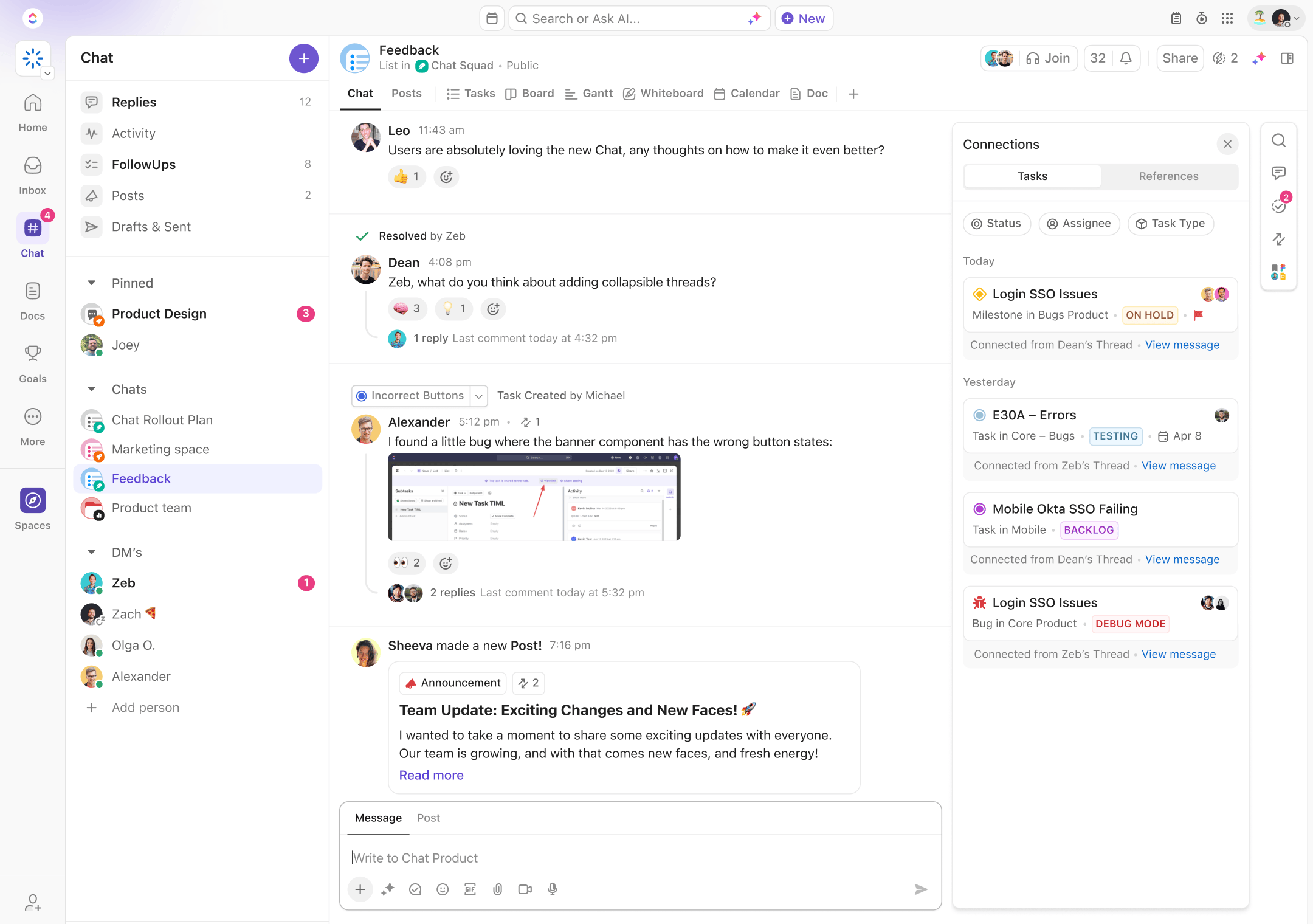
ClickUp is a versatile project management and productivity tool that caters to teams of all sizes and industries. It combines various functionalities into a single platform, allowing users to manage tasks, collaborate on documents, set goals, and communicate seamlessly. ClickUp’s flexibility and customization options make it suitable for a wide range of use cases, from software development to marketing and beyond.
Key Features of ClickUp
ClickUp offers a rich set of features that set it apart from other productivity tools:
Task Management: At its core, ClickUp provides robust task management capabilities. Users can create tasks, assign them to team members, set due dates, and track progress. Tasks can be organized into lists, boards, or calendars, allowing teams to choose the view that best suits their workflow.
Documents and Wikis: ClickUp allows users to create and collaborate on documents directly within the platform. This feature enables teams to maintain a centralized knowledge base, making it easy to share information and resources.
Goals and OKRs: ClickUp helps teams set and track their goals using the Objectives and Key Results (OKR) framework. Users can create measurable goals, assign them to team members, and monitor progress, ensuring alignment and accountability.
Time Tracking: With ClickUp’s built-in time tracking feature, users can log the time spent on tasks and projects. This functionality helps teams understand their productivity patterns and make informed decisions about resource allocation.
Integrations: ClickUp integrates with a wide range of third-party applications, including Slack, Google Drive, and Zoom. These integrations enhance collaboration and streamline workflows by connecting ClickUp with the tools teams already use.
Customizable Workflows: ClickUp allows teams to customize their workflows to match their unique processes. Users can create custom statuses, fields, and templates, ensuring that the platform aligns with their specific needs.
Collaboration Tools: ClickUp includes various collaboration features, such as comments, mentions, and notifications. These tools facilitate communication among team members, helping them stay informed and engaged.
Why Use ClickUp for Your Team?
Centralized Workspace
One of the primary advantages of ClickUp is its ability to centralize all aspects of project management and collaboration in one platform. By bringing tasks, documents, goals, and communication together, ClickUp eliminates the need for multiple tools, reducing complexity and improving efficiency.
Enhanced Collaboration
ClickUp’s collaboration features foster teamwork and communication. Team members can easily share updates, provide feedback, and collaborate on documents, ensuring that everyone is aligned and working towards common goals.
Increased Productivity
With ClickUp’s task management and time tracking capabilities, teams can optimize their workflows and focus on what matters most. By providing visibility into task progress and resource allocation, ClickUp helps teams identify bottlenecks and make data-driven decisions to enhance productivity.
Flexibility and Customization
ClickUp’s customizable workflows and views allow teams to tailor the platform to their specific needs. Whether you prefer a Kanban board, Gantt chart, or list view, ClickUp can adapt to your preferred working style, making it easier to manage projects effectively.
Goal Alignment
ClickUp’s goal-setting features help teams align their efforts with organizational objectives. By tracking goals and key results, teams can ensure that everyone is focused on the right priorities, driving accountability and performance.
How to Get Started with ClickUp
Getting started with ClickUp is easy and straightforward. Here’s a step-by-step guide to help you begin your journey toward enhanced productivity:
Step 1: Sign Up for ClickUp
Begin by signing up for a ClickUp account. The platform offers a free plan, allowing you to explore its features before committing to a paid subscription.
Step 2: Set Up Your Workspace
Once you’ve created an account, set up your workspace by inviting team members and configuring your settings. ClickUp’s user-friendly interface makes it easy to get started.
Step 3: Create Your First Project
With your workspace set up, create your first project. Define the project’s goals, timelines, and key milestones. This initial setup will provide a clear direction for your team as you begin working on the project.
Step 4: Add Tasks and Assign Responsibilities
Start adding tasks to your project. Use ClickUp’s task management features to categorize and prioritize tasks, ensuring that your team knows what needs to be done and when. Assign tasks to team members to clarify responsibilities.
Step 5: Collaborate and Communicate
Encourage team members to collaborate and communicate within ClickUp. Use comments, mentions, and notifications to keep everyone informed and engaged. This transparency will help build trust and improve team dynamics.
Step 6: Monitor Progress and Adjust
As your team works on the project, monitor progress using ClickUp’s analytics and reporting features. Regularly review your project’s status and make adjustments as needed to stay on track.
Best Practices for Using ClickUp
To maximize the effectiveness of ClickUp, consider the following best practices:
Define Clear Goals
Before starting a project, define clear goals and objectives. This clarity will help your team stay focused and aligned throughout the development process.
Prioritize Tasks Effectively
Use ClickUp’s prioritization features to ensure that your team is working on the most important tasks first. Regularly review and adjust priorities based on changing circumstances and feedback.
Foster Open Communication
Encourage open communication among team members. Use ClickUp’s commenting and collaboration features to facilitate discussions and share updates. This transparency will help build trust and improve team dynamics.
Regularly Review Performance
Take advantage of ClickUp’s analytics and reporting features to regularly review your team’s performance. Use this data to identify areas for improvement and implement changes to enhance your processes.
Stay Agile
In the fast-paced world of project management, agility is crucial. Use ClickUp’s customizable workflows and project management features to adapt to changing requirements and market conditions.
Case Studies: Successful Implementations of ClickUp
Case Study 1: Vercel
Vercel, a leading platform for frontend developers, implemented ClickUp to streamline its project management processes. By using ClickUp’s task management and collaboration features, Vercel was able to improve communication among its development teams. As a result, the company saw a significant increase in productivity and faster delivery of new features.
Case Study 2: CashApp
CashApp, a popular mobile payment service, adopted ClickUp to enhance its software development workflows. The platform’s customizable workflows and integrations with tools like Slack allowed CashApp’s teams to work more efficiently. This implementation led to improved transparency and accountability, ultimately driving better customer experiences.
Frequently Asked Questions
Q: Is ClickUp free to use? A: ClickUp offers a free plan, allowing you to explore its features before committing to a paid subscription.
Q: Do I need technical skills to use ClickUp? A: No, ClickUp is designed for users of all skill levels. Its intuitive interface makes it easy to navigate and use.
Q: Can I integrate ClickUp with other tools? A: Yes, ClickUp integrates seamlessly with popular tools such as Slack, Google Drive, and Zoom, allowing you to connect your workflows and enhance collaboration.
Q: Are there customizable workflows in ClickUp? A: Absolutely! ClickUp allows you to create custom task statuses, fields, and templates to match your team’s unique processes.
Looking Ahead: The Future of Productivity with ClickUp
As the demand for effective project management tools continues to grow, ClickUp is at the forefront of this trend, providing teams with the tools they need to streamline their workflows and enhance collaboration. By empowering teams to manage tasks, documents, goals, and communication effectively, ClickUp helps businesses achieve their goals and drive innovation.